
Newegg · 2 days ago
$15
more
↑ less
This 80mm fan is a straightforward option for adding extra airflow to a case that's running warm, and the green LED gives your build a bit of visual flair without needing a full lighting setup. Buy Now at Newegg
Features
- 80x80x25mm standard chassis size
- Integrated green LED lighting
- Efficient PC case cooling airflow
Newegg · 2 days ago
$22
more
↑ less
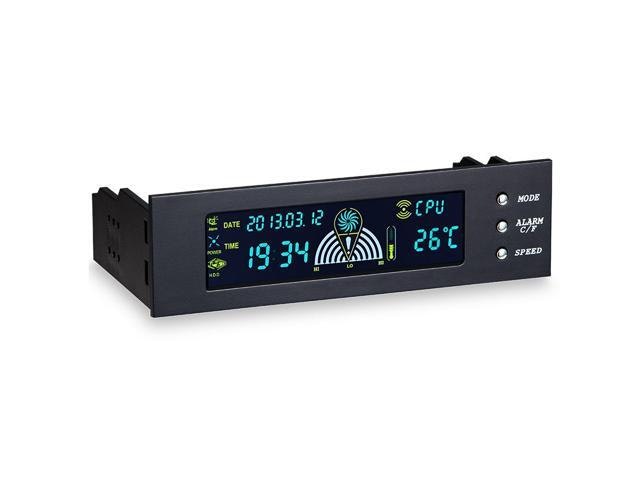
Anyone running multiple case fans and tired of guessing at noise versus airflow will appreciate having manual dial control mounted right in a drive bay, no software or BIOS diving required. Buy Now at Newegg
Features
- Control three fans via dedicated front panel knobs
- Monitor CPU and HDD temperatures on LED display
- Adjust fan speeds from 40% to 100%
- Compatible with 3-pin and 4-pin fans
- Fits standard 5.25-inch computer case drive bays
Newegg · 2 days ago
$12
more
↑ less
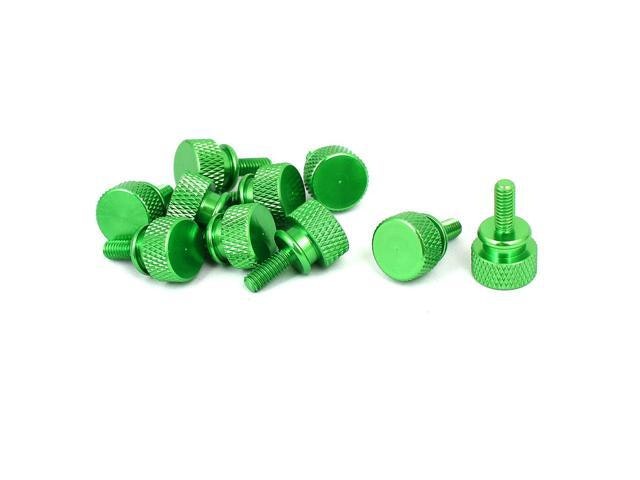
Handy for anyone regularly opening up a PC case, since these knurled thumb screws let you tighten or remove panels by hand without hunting for a screwdriver. Buy Now at Newegg
Features
- Knurled head for easy hand tightening
- Durable aluminum alloy construction
- Flat head design for flush installation
- Fully threaded for secure fastening
- M4x10mm size for PC component compatibility

Newegg · 2 days ago
$17
more
↑ less
Handy for anyone building or upgrading a PC who's got extra fans but not enough motherboard headers or 3-pin connections available; this pack lets you power them straight off your PSU's Molex connectors instead. Buy Now at Newegg
Features
- Powers up to five 3-pin fans via one Molex
- Supports flexible 12V or 5V power configurations
- Adapts 4-pin Molex to four 3-pin fan connectors
- Simplifies PC case fan cable management
- Provides reliable power for CPU and case cooling
Newegg · 2 days ago
$13
more
↑ less
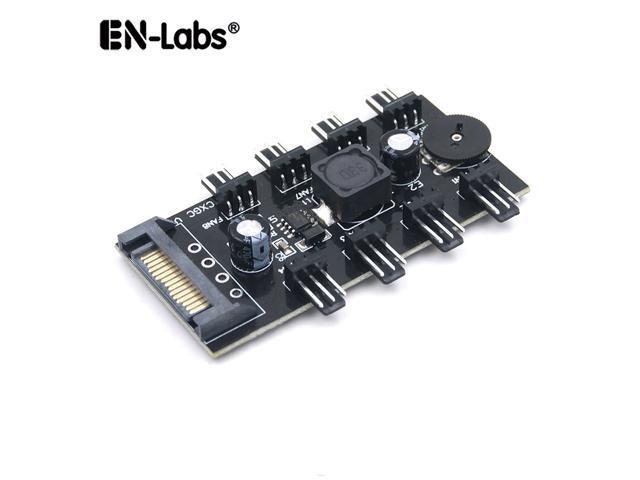
Handy for anyone with a case full of fans running at full blast, letting you dial back noise and airflow individually across up to eight 3-pin fans instead of pulling them one by one. Buy Now at Newegg
Features
- Control 8 fans simultaneously with one adjustment knob
- SATA 15pin power connection for reliable performance
- Supports up to 8 3pin fan headers
- Stepless voltage governor for precise speed control
- Includes rubber backed tape for internal mounting
Newegg · 2 days ago
$12
more
↑ less
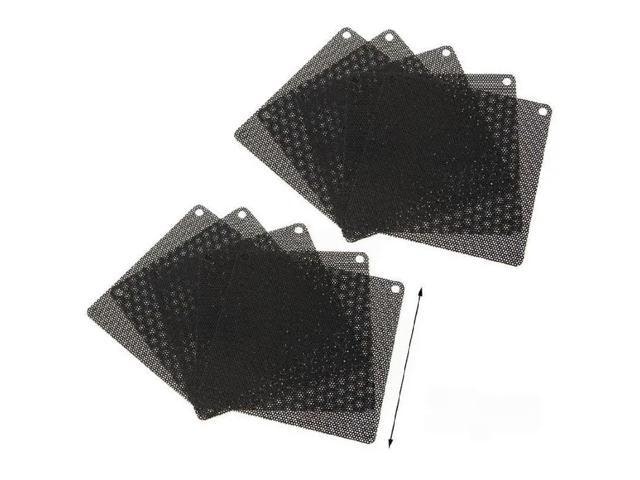
Keeping dust out of your PC's intake fans cuts down on cleaning frequency and helps components run cooler over time, so this mesh filter suits anyone tired of vacuuming out their case every few months. Buy Now at Newegg
Features
- Magnetic dust filter for fan case chassis
Newegg · 2 days ago
$10
more
↑ less
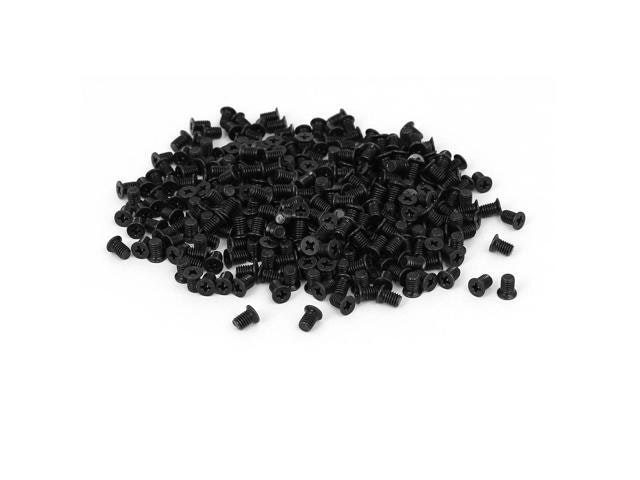
Stocking up on 400 M3x4.8mm screws makes sense if you build or repair computers regularly and don't want to hunt for the right size mid-project every time. It's the kind of bulk hardware pack worth keeping in a toolbox for hard drive installs, case fans, and other small mounting jobs. Buy Now at Newegg
Features
- 400 M3x4.8mm black zinc plated screws
- Cross recessed countersunk flat head design
- Fully threaded for secure mounting
- Compatible with 2.5 inch hard drives
- Black finish blends with PC chassis
Newegg · 2 days ago
$34
more
↑ less
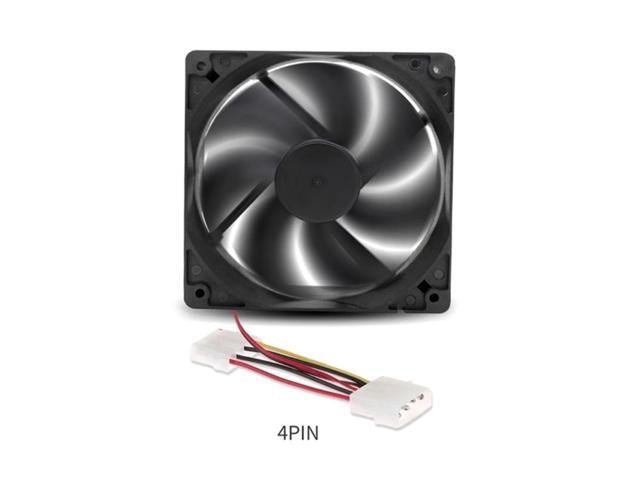
Keeping your build cool without excess noise comes down to solid airflow, and this 120mm fan is a straightforward way to add or replace cooling in a standard case setup without hunting for oddball sizes. Buy Now at Newegg
Features
- 120x120x25mm cooling fan
- 12V power input
- 4Pin and 3Pin connector support
- Universal chassis PC case compatibility
Newegg · 2 days ago
$400
more
↑ less
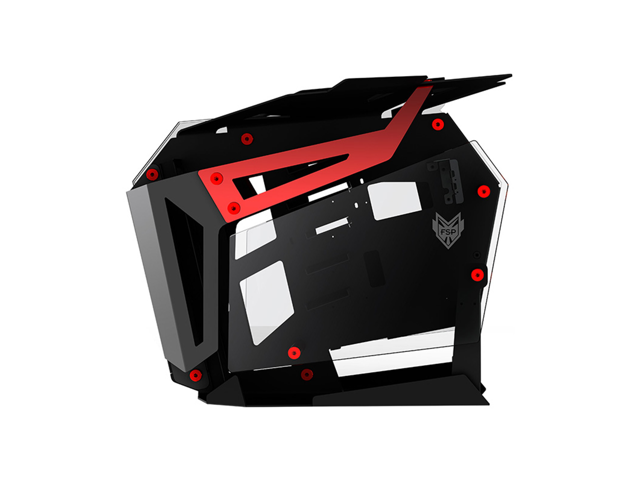
Anyone building or benchmarking a test bench setup will appreciate the open frame design, since it lets you swap components on the fly without wrestling with side panels or cramped clearances. Buy Now at Newegg
Features
- Dual-system open frame chassis
- Aluminum and tempered glass construction
- Supports E-ATX and Mini-ITX motherboards
- Integrated ARGB center light bar
- Model: CMT710R
Newegg · 2 days ago
$55
more
↑ less
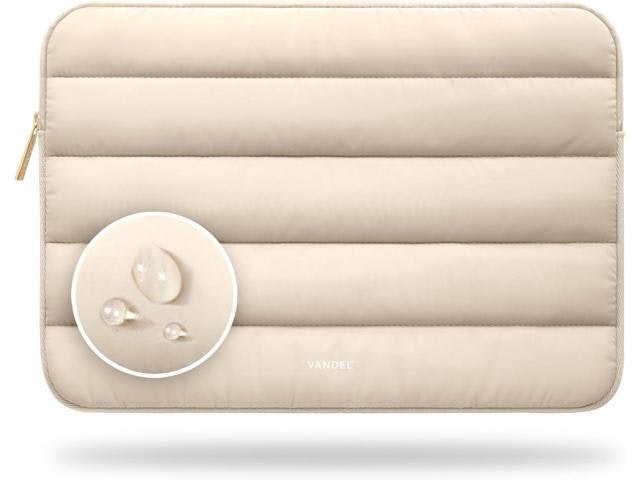
Padded corner to corner, this sleeve suits anyone who tosses a laptop into a backpack daily and wants a buffer against bumps and scratches without adding bulk. Buy Now at Newegg
Features
- Fits 15-16 inch laptops
- Protective puffy design
- Compatible with MacBook Pro and major brands
- Portable carrying case
- Universal 15.6 inch laptop compatibility

Newegg · 2 days ago
$107
more
↑ less
This ultra-wide secondary display is built for status bars, chat windows, or media controls that you want visible without eating into your main screen's real estate, and it draws power straight from USB so there's no separate outlet needed. Buy Now at Newegg
Features
- 1920x480 resolution
- 9.16 inch IPS display
- USB-C and 9Pin connectivity
- Real-time CPU GPU RAM monitoring
Newegg · 2 days ago
$65
more
↑ less
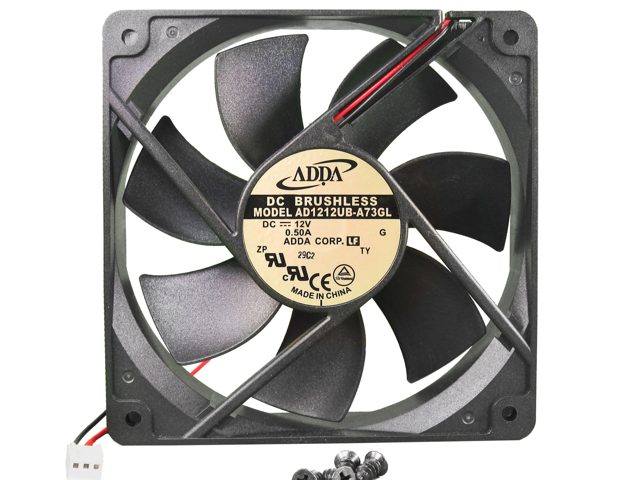
Keeping your build cool without excess noise comes down to solid airflow, and this 120mm fan is a straightforward way to add or replace cooling in a standard case setup without hunting for oddball sizes. Buy Now at Newegg
Features
- 120mm by 25mm case fan size
- 99CFM high airflow cooling
- Durable ball bearing construction
- 12V power supply compatibility
- Simple 2-wire connection
Newegg · 2 days ago
$64 $70
more
↑ less
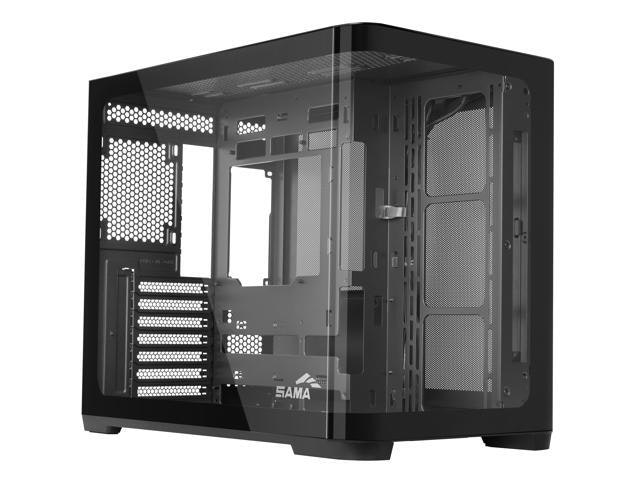
Anyone building a new PC or refreshing an old rig will appreciate the airflow-focused design this mid-tower offers without cramping your components. It's currently $6 (9%) off the $70 list price at Newegg. Buy Now at Newegg
Features
- Curved tempered glass front and side panels
- Supports back-connect ATX, MATX, and ITX motherboards
- Accommodates 360mm liquid cooling systems
- Fits GPUs up to 445mm long
- Model: V60E Black

Newegg · 2 days ago
$34
more
↑ less
A solid pick for anyone running external SSDs for demanding transfers, since the active cooling helps maintain full read/write speeds instead of throttling once the drive heats up. Buy Now at Newegg
Features
- 10Gbps USB 3.2 Gen2 data transfer speeds
- Active cooling system for thermal management
- Durable silicone case enclosure
- Universal compatibility for computers, cameras, and laptops
- Supports solid state drive storage

Newegg · 2 days ago
$8 $14
more
↑ less
Handy for anyone building or upgrading a PC, since you'll almost always end up short a screw or two when mounting drives or fans, and 200 pieces means you won't need to buy more for years. Newegg has it at $7.99, $6.10 off the $14.09 list price. Buy Now at Newegg
Features
- 200 count 6#-32 UNC phillips head screws
- Standard 3.5 inch hard drive mounting compatibility
Newegg · 2 days ago
$72
more
↑ less
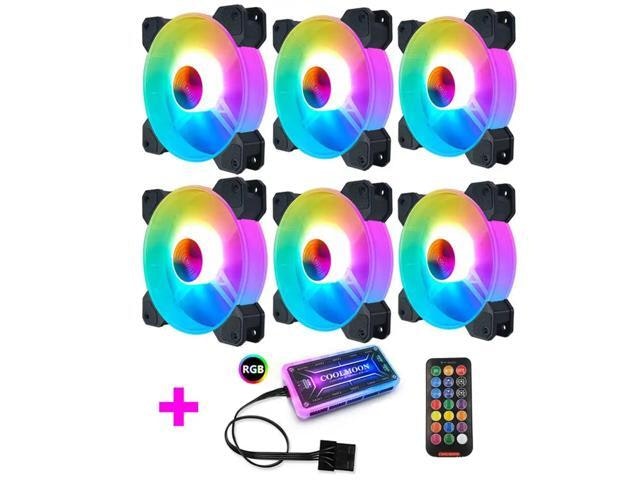
Setting up multiple fans for airflow gets a lot simpler with this 6-pack, and the included controller lets you sync lighting and speeds without juggling separate remotes for each one. Newegg's bundle works out cheaper than buying six fans individually, so it's worth a look if you're building or upgrading a case that needs consistent cooling throughout. Buy Now at Newegg
Features
- 6pcs 120mm RGB LED cooling fans
- Silent fan operation for PC gaming cases
- Integrated fan controller included
- Standard 12V 6Pin connector interface
- Efficient heatsink cooling for gaming computers
Newegg · 2 days ago
$52
more
↑ less
Anyone running an Orange Pi AIpro 8T will want something to keep the board protected while still allowing airflow, and this aluminum case handles both without blocking access to ports or headers. Buy Now at Newegg
Features
- Aluminum metal construction for enhanced durability
- Protective enclosure for Orange Pi AIpro
- Custom fit for single board computer
Newegg · 2 days ago
$16
more
↑ less
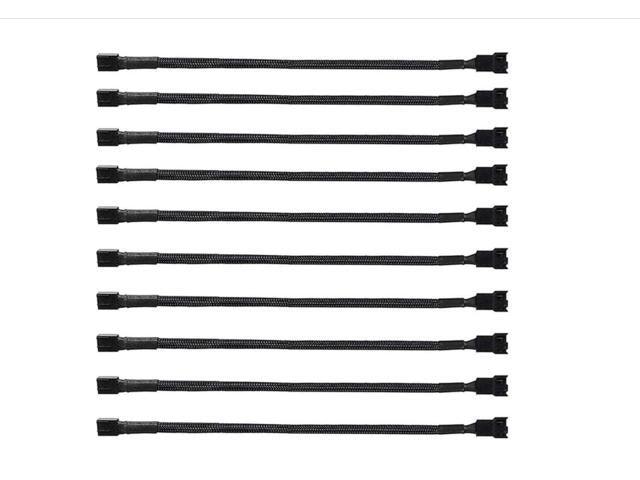
A handy pick for anyone building or maintaining multiple PCs, since each cable lets you run two 4-pin PWM fans off a single motherboard header while keeping full speed control. Ten in a pack means you're covered for future builds or repairs without reordering. Buy Now at Newegg
Features
- 10-pack PWM fan splitter cables
- 10.6-inch sleeved braided extension cable
- Supports 3-pin and 4-pin cooling fans
- Male to female adapter for ATX cases
- Extends power connectivity for PC cooling fans
Newegg · 2 days ago
$31
more
↑ less
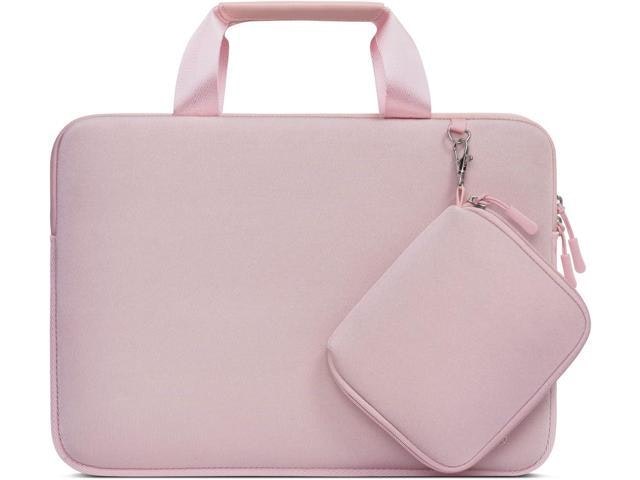
Slim laptops need protection without bulk, and this sleeve does the job for anyone tossing their 13.3-inch machine into a bag daily. Newegg carries it as a straightforward, no-frills option if you just want your screen and casing shielded from scratches. Buy Now at Newegg
Features
- Fits 13.3-inch laptops
- Durable neoprene material
- Retractable handle for easy carrying
- Includes matching detachable accessory pouch
- Compatible with major laptop brands
Newegg · 2 days ago
$22
more
↑ less
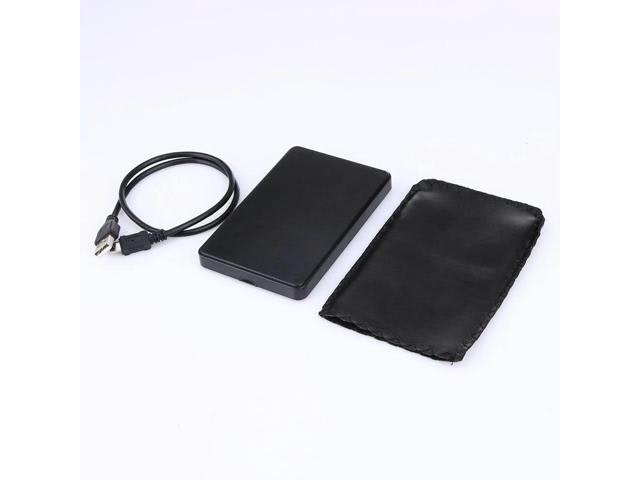
Anyone with a spare 2.5-inch SATA drive lying around can turn it into portable storage with this enclosure, making it a cheap way to back up files or repurpose an old laptop drive. Buy Now at Newegg
Features
- Supports 2.5-inch SATA hard drives
- USB 2.0 interface for connectivity
- Durable plastic external enclosure
- Portable mobile hard drive caddy
- Desktop and laptop compatible design
Computers: The Basics
Shopping for computers doesn’t have to drain your savings — if you know how to find the best prices. Our team of experts review the sales and publish the best computer deals so you don’t have to work half as hard.
How to Save on Streaming Services
Computers: The Basics
Shopping for computers doesn’t have to drain your savings — if you know how to find the best prices. Our team of experts review the sales and publish the best computer deals so you don’t have to work half as hard.
Basic Computer Terminology
You don’t have to be a tech wiz to buy your next computer. Make note of these common terms to help you when you’re shopping computer sales!
- Operating System (OS): This is the system that controls how your computer performs basic functions. The most common operating systems you’ll see right now are Windows 10 and Mac OS X. They perform comparably, so picking one relies on personal preference.
- Random-access memory (RAM): The short-term memory of your computer. Your RAM controls how quickly and efficiently your computer is able to switch between tasks. The higher the RAM, generally, the better the performance.
- Processor (CPU): The powerhouse or “brain” of the computer, your processor handles your computer’s basic instructions, such as using your mouse and keyboard, or running applications. The two most popular CPU manufacturers are AMD and Intel. You can read about which processor is right for you in this article from Digital Trends.
- Storage: There are two types of physical computer storage, hard drives (HD) and solid state drives (SSD). SSD storage is more common these days because they are more stable and faster. While it’s ideal to aim for greater storage space, a bigger drive will cost more money. Determine your storage needs based on how you plan to use your computer. Abt recommends starting with at least 500 GB of storage space.
Additionally, some providers, like Verizon, offer streaming perks with select plans, giving you months of access to services like Disney+, Hulu, and ESPN+ at no extra cost. Annual payment options can also help you save, as they often come with a discount equivalent to getting one or two months free. For those on a budget, ad-supported plans provide the same great content at a fraction of the cost. Visit our Disney+ Subscription Cost page to explore pricing and options.
What Deals Are Available on Disney+ Bundles?
Disney+ bundle deals provide significant savings when combining services. For example, the Verizon Disney Bundle offered six months of Disney+, Hulu, and ESPN+ for free with select Unlimited plans. Bundles like the Disney+ Premium annual plan ($159.99) save you the cost of two months compared to monthly payments. Bundle options like the ad-supported Duo Basic plan (Disney+ and Hulu) start at $10.99 per month, while ad-free Duo Premium is $19.99. Learn more on the Disney+ Bundle Deals page.
You can also explore seasonal and promotional deals during events like Black Friday to maximize your savings. Check out the Best Disney+ Deals page for current offers.
How Much Is a Disney+ Subscription?
Disney+ subscriptions currently start at $8 per month for the ad-supported Basic plan, while the Premium ad-free plan is priced at $13.99 per month or $139.99 annually. Prices will increase beginning October 17, 2024, with the Premium plan rising to $15.99 per month or $159.99 annually. Explore all pricing options on the Disney+ Subscription Costs page.
Best Disney+ Deals
Disney+ offers value-packed streaming bundles, such as the Disney+, Hulu, and Max bundle starting at $17 per month with ads or $30 per month ad-free. Disney+ also supports paid sharing, allowing you to add one extra member for $6.99 per month with Basic or $9.99 per month with Premium. Prices are increasing on October 17, 2024, so finding deals like these is more important than ever. For more information, visit our Best Disney+ Deals page.
Best Disney+ Deals
Disney+ offers value-packed streaming bundles, such as the Disney+, Hulu, and Max bundle starting at $17 per month with ads or $30 per month ad-free. Disney+ also supports paid sharing, allowing you to add one extra member for $6.99 per month with Basic or $9.99 per month with Premium. Prices are increasing on October 17, 2024, so finding deals like these is more important than ever. For more information, visit our Best Disney+ Deals page.
Annual Disney+ Subscription Costs
Disney+ Premium annual plans cost $139.99 but will rise to $159.99 on October 17, 2024. Opting for the annual plan saves you the equivalent of two months compared to monthly billing. Note that annual payments are only available for standalone Disney+ Premium plans and not for bundles. Customize your subscription to include ad-supported or ad-free options with Hulu, ESPN+, or Max. See all pricing details on the Disney+ Subscription Cost page.
Basic Computer Terminology
You don’t have to be a tech wiz to buy your next computer. Make note of these common terms to help you when you’re shopping computer sales!
- Operating System (OS): This is the system that controls how your computer performs basic functions. The most common operating systems you’ll see right now are Windows 10 and Mac OS X. They perform comparably, so picking one relies on personal preference.
- Random-access memory (RAM): The short-term memory of your computer. Your RAM controls how quickly and efficiently your computer is able to switch between tasks. The higher the RAM, generally, the better the performance.
- Processor (CPU) : The powerhouse or “brain” of the computer, your processor handles your computer’s basic instructions, such as using your mouse and keyboard, or running applications. The two most popular CPU manufacturers are AMD and Intel. You can read about which processor is right for you in this article from Digital Trends.
- Storage: There are two types of physical computer storage, hard drives (HD) and solid state drives (SSD). SSD storage is more common these days because they are more stable and faster. While it’s ideal to aim for greater storage space, a bigger drive will cost more money. Determine your storage needs based on how you plan to use your computer. Abt recommends starting with at least 500 GB of storage space.
Basic Software for Your PC
When you start using your new computer, you’ll want to install some basic software to get going. Most pre-built computers come with a suite of software pre-installed with the OS.
Productivity Tools
Whether you opt for a package like Microsoft Office or iWork, opt for freeware like Open Office, or choose an online software pack like G Suite, it’s always a good idea to install a productivity software to help you with tasks like making spreadsheets, word processing, and viewing PDFs.
Internet Browser
Microsoft Edge and Safari are the standard browsers that come with a new computer, but many shoppers rely on browsers like Google Chrome or Mozilla Firefox.
Cloud Storage
Not only does cloud storage give you more space than the limited physical storage on your PC, but it also gives you access to your files anywhere. Many companies like Google or Dropbox offer a limited amount of free cloud storage.
Antivirus Software
Antivirus tools do more than simply keep viruses at bay; they also protect against malware, phishing, adware, spyware, and more. Windows 10 comes with Microsoft Security Essentials as a default, and security options are built into Mac OS X (as opposed to a standalone program). That said, antivirus suites like Norton, McAfee, and Bitdefender may offer you more protection.
Media Player
Many laptops and desktops no longer include a physical media drive. If you plan on watching any videos locally (not streamed online), it’s useful to have a media player. Typically, this software is built in, but check out this list for some info on the best media players for Windows 10 and this one for Mac.
Music Player
Not to be confused with a media player, a good music application is worth installing on your computer. Spotify, iTunes, and Pandora are some common favorites that give you access to a practically limitless selection. The desktop versions make it easier to browse and build playlists.
Computer Deal Subcategories
DealNews offers the best deals on computers and computing accessories. You can browse our deals in different categories including, but not limited to:
Whether you’re looking for a new work laptop, or want to find a quality gaming system, check out our selection of the best laptop deals here.
Did you know you should replace your computer every 4 to 5 years to keep up with the latest performance and security updates? Check out the best computer deals for your next desktop here.
Did you know that DealNews first launched as a deal website for Apple Macintosh products? While we’ve grown significantly since then, we still know how to find the best Apple computer deals!
Maybe you’re in the market for a larger streaming device for your kids, or maybe you’d like a device to serve as your e-reader (with a few extra perks). Whatever you’re searching for, check out the best tablet and iPad deals here.
- Peripherals
Routers , monitors , input devices , and more! These devices make using your computer more comfortable and practical. Be sure you search our site to save big!
When shopping computer sales, check out DealNews before going anywhere else, so you know you’ll always find the best deals!
Frequently Asked Questions
Should I purchase a laptop or desktop?
It’s important to review your needs before buying a laptop or desktop computer.
- What’s your budget? Because they’re bigger and more modular, desktop computers tend to outperform laptops. A desktop’s customizability means your budget can go a lot further. However, laptops have other advantages over desktops.
- Do you need portability? High-end laptops are generally more expensive, but a laptop will always win the portability debate.
- How much power do you need? Desktops have more room to work with, so you can add more RAM, more storage, a bigger graphics card, and other performance improvements. But if you don’t need all that, then a mid-tier laptop may be the cheaper choice.
- Are you a gamer? Laptops that are built for gaming are among the most expensive on the market. That said, if you’re not comfortable selecting individual pieces to build a gaming desktop, you may be willing to pay a premium to get that performance.
- Don’t forget the repairs. If you’re handy, you can often repair or replace parts in a desktop computer with the help of online guides. Most laptops require specialized tools and skills to repair, so desktop fixes tend to be cheaper.
Overall, desktop computers have a lot of advantages, but the lack of portability can be a deal breaker. No matter what you decide, be sure to check out specs and buying guides from the DealNews Blog and other reputable sources like CNET or PCMag. Then shop DealNews for the best computer deals!
How do I get my external hard drive to show up?
Once you’ve ensured that your external drive is plugged in and powered on, check out these steps from PCMag:
- Try a different USB port.
- Try a different PC.
- Update your drivers.
- Format the drive.
What is a VPN?
VPN stands for “virtual private network.” A VPN protects your internet usage by routing your internet connection through a private server. Using a VPN keeps your online browsing more private and also grants you access to websites and content that may not be available in your country.
For more information about VPNs, visit our NordVPN Free Trial Guide and our NordVPN Subscription Cost Page.
How can I boost my WiFi signal?
When your internet connection seems impossibly slow, the cause isn’t your provider, but your WiFi signal strength. Check out these options to boost your WiFi signal:
- Update your router firmware. Each router is different, but you can typically use the steps found here to run updates.
- Place your router in the most optimal space. You want to place your wireless router away from walls or obstructions. If possible, put it in the most central place in your home.
- Pick a different frequency. If you have a dual-band router, try using the 5GHz band. This band offers higher speeds and may get an additional boost if fewer devices are connected to it.
- Change the channel. While most routers will automatically choose the channel with the least congestion, some cheaper routers may require you to manually update it.
- Upgrade your router. How old is your current router? If it's a previous-generation 802.11b model, upgrading could improve your wireless signal. If you already have a newer 802.11n or Wi-Fi 6 router, you're in good shape.
- Replace the antenna. You may boost your signal by adding or replacing an external antenna. PCMag recommends purchasing one marked “high-gain” and opting for a directional antenna rather than an omnidirectional one.
- Add a wireless range extender. If you only want to boost coverage in one or two rooms, a WiFi extender can help you eliminate dead spots. Check out this guide from the DealNews Blog.
Switch to a mesh WiFi system. Wireless mesh networking is becoming more popular because it can provide more complete coverage throughout the home. Mesh systems replace your router and work seamlessly to eliminate coverage gaps.
By: Kristen Harris, Manager
A Georgia girl with three years of experience in IP Law and grounded in understanding marketing and consumer motives. When she's not working with the fabulous staff of DealNews, you can find her whining at rowing practice and browsing the Hot Deals on the site.
Want to know the moment we post a great deal on Computers?
Create an Alert